---
title: How to clear Wiserfunding cookies from my browser
description: This article walks users through deleting/clearing Wiserfunding cookies.
image: https://knowledge.wiserfunding.com/hubfs/Wiserfunding%20Logo%20-01%20(3).png
---
[Skip to content](https://knowledge.wiserfunding.com/how-to-clear-wiserfunding-cookies#main-content)
English
Show submenu for translations
[File a support ticket](https://knowledge.wiserfunding.com/kb-tickets/new?hsLang=en)
![Logo\_Wiserfunding Logo -01-2.png\]](https://knowledge.wiserfunding.com/hs-fs/hubfs/Logo_Wiserfunding%20Logo%20-01-2.png?height=50&name=Logo_Wiserfunding%20Logo%20-01-2.png)
Open main navigation
Close main navigation
- English
Show submenu for translations
- [File a support ticket](https://knowledge.wiserfunding.com/kb-tickets/new)
- wiserfunding.com
wiserfunding.com
Hello. How can we help you?
- There are no suggestions because the search field is empty.
1. [Help Centre](https://knowledge.wiserfunding.com/?hsLang=en)
2. [Using the Wiserfunding Platform](https://knowledge.wiserfunding.com/using-the-wiserfunding-platform?hsLang=en)
3. [General](https://knowledge.wiserfunding.com/using-the-wiserfunding-platform?hsLang=en#general)
# How to clear Wiserfunding cookies from my browser
## This article walks you through clearing Wiserfunding cookies on your browser.
Browsers store copies of web pages to help them load more quickly in the future. However, this can cause issues when updates are made to Wiserfunding, but your browser continues to load an older version stored in its cookies.
#### Clearing Wiserfunding on specific browsers:
**For Google Chrome**
Copy the link below and paste it in your Chrome browser to open your Chrome settings directly:
chrome://settings/content/all?searchSubpage=wiserfunding&search=cookies
- Then, click on **Delete displayed data** on the top right of your screen.
**For Microsoft Edge**
Copy the link below and paste it in your Edge browser to open your Edge settings directly:
edge://settings/privacy/cookies/AllCookies?searchSubpage=wiserfunding
- Then, click on **Remove all shown** in the top right of your screen.
Firefox and Safari do not support direct-setting links, but you can manage cookies by following the steps below:
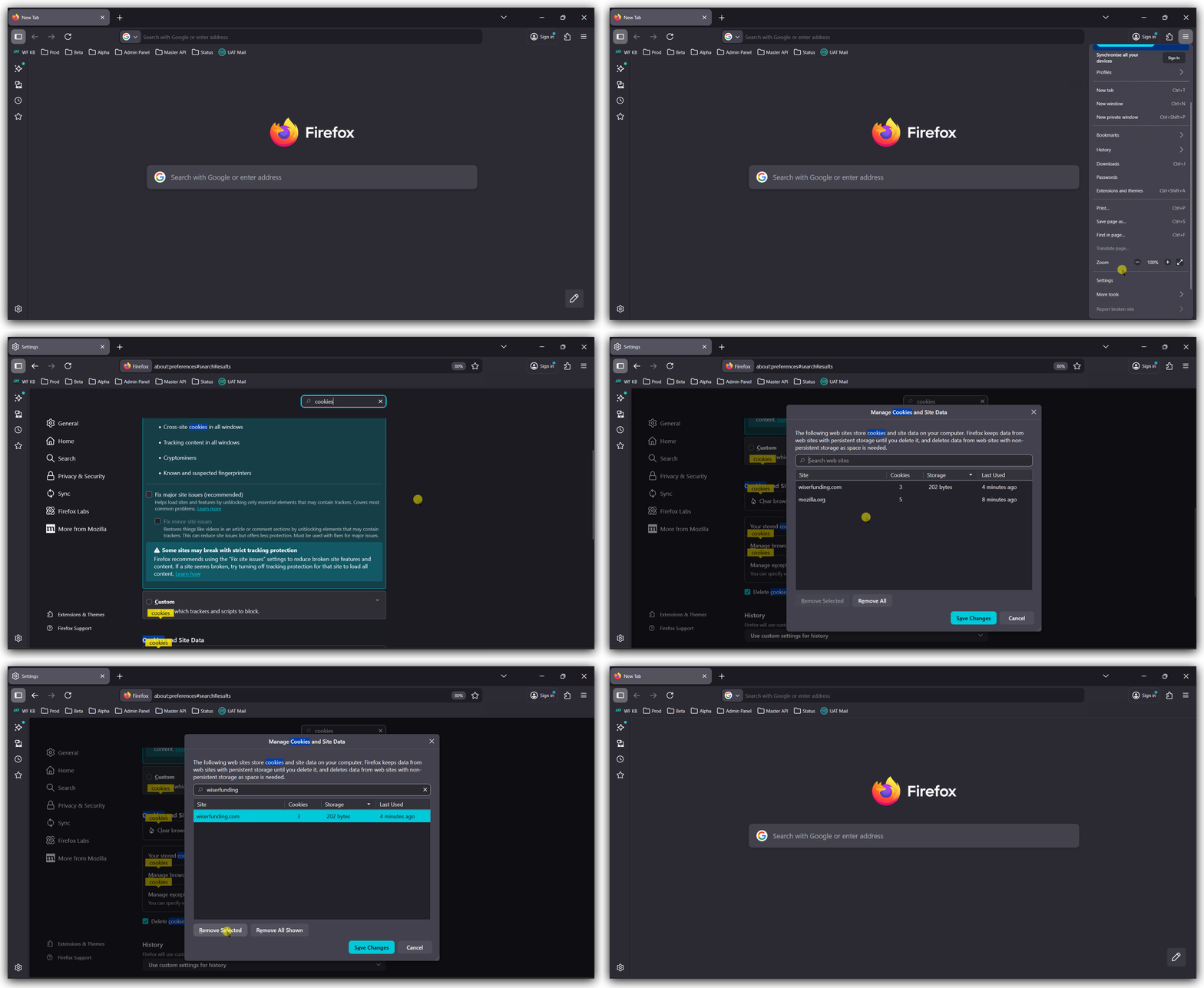
**For Mozilla Firefox**
1. Open Firefox and navigate to **Settings**/**Preferences**.
2. Use the search bar to look for **Cookies**.
3. Select **Manage browsing data** from the results.
4. Search for **Wiserfunding** and select the relevant results.
5. Click **Remove Selected**, or **Remove All Shown**, then **Save Changes**.
**For Safari**
1. Open Safari and navigate to **Settings**
2. Go to **Privacy** and select **Manage website data** from the options.
3. Search for **Wiserfunding** and select the relevant results.
4. Click **Remove** or **Remove all**, then **Done**.
These steps will clear your browser’s cookies for Wiserfunding and ensure you are loading the most recent version of the platform.
- [Using the Wiserfunding Platform](https://knowledge.wiserfunding.com/using-the-wiserfunding-platform?hsLang=en#main-content)
- [Running New Reports](https://knowledge.wiserfunding.com/using-the-wiserfunding-platform?hsLang=en#running-new-reports)
- [Updating Reports | Adding More Data](https://knowledge.wiserfunding.com/using-the-wiserfunding-platform?hsLang=en#updating-reports-adding-more-data)
- [WiserAI Documents](https://knowledge.wiserfunding.com/using-the-wiserfunding-platform?hsLang=en#wiserai-documents)
- [Portfolio Management](https://knowledge.wiserfunding.com/using-the-wiserfunding-platform?hsLang=en#portfolio-management)
- [Using Wiserfunding APIs](https://knowledge.wiserfunding.com/using-the-wiserfunding-platform?hsLang=en#using-wiserfunding-apis)
- [Integrations](https://knowledge.wiserfunding.com/using-the-wiserfunding-platform?hsLang=en#integrations)
- [General](https://knowledge.wiserfunding.com/using-the-wiserfunding-platform?hsLang=en#general)
- [Understanding the Credit Insights](https://knowledge.wiserfunding.com/understanding-the-credit-insights?hsLang=en)
- [Create Users | Passwords | Contact Support](https://knowledge.wiserfunding.com/create-users-passwords-contact-support?hsLang=en#main-content)
- [Contact Support](https://knowledge.wiserfunding.com/create-users-passwords-contact-support?hsLang=en#contact-support)
- [Admin](https://knowledge.wiserfunding.com/create-users-passwords-contact-support?hsLang=en#admin)
- [Platform Release Notes](https://knowledge.wiserfunding.com/platform-release-notes?hsLang=en#main-content)
- [API Versioning Policy](https://knowledge.wiserfunding.com/platform-release-notes?hsLang=en#api-versioning-policy)
[](http://wiserfunding.com?hsLang=en)
Copyright © 2026, Wiserfunding Ltd