---
title: Changing WiserAI Document Output Currency.
description: This article walks you through using the WiserAI Documents feature with PNG, JPEG, CSV, Excel, or PDF documents.
image: https://knowledge.wiserfunding.com/hubfs/Wiserfunding%20Logo%20-01%20(3).png
---
[Skip to content](https://knowledge.wiserfunding.com/wiserai-document-currency#main-content)
English
Show submenu for translations
[File a support ticket](https://knowledge.wiserfunding.com/kb-tickets/new?hsLang=en)
![Logo\_Wiserfunding Logo -01-2.png\]](https://knowledge.wiserfunding.com/hs-fs/hubfs/Logo_Wiserfunding%20Logo%20-01-2.png?height=50&name=Logo_Wiserfunding%20Logo%20-01-2.png)
Open main navigation
Close main navigation
- English
Show submenu for translations
- [File a support ticket](https://knowledge.wiserfunding.com/kb-tickets/new)
- wiserfunding.com
wiserfunding.com
Hello. How can we help you?
- There are no suggestions because the search field is empty.
1. [Help Centre](https://knowledge.wiserfunding.com/?hsLang=en)
2. [Using the Wiserfunding Platform](https://knowledge.wiserfunding.com/using-the-wiserfunding-platform?hsLang=en)
3. [WiserAI Documents](https://knowledge.wiserfunding.com/using-the-wiserfunding-platform?hsLang=en#wiserai-documents)
# Changing WiserAI Document Output Currency.
## This article walks you through changing the output currency when using the WiserAI Documents feature.
Financial documents such as annual accounts, management accounts, and P&L balance sheets are normally prepared in a company's local currency. However, users may need to review and analyse this information in a different reporting currency, such as Euros or US Dollars.
With WiserAI, users can now automatically convert uploaded financial documents into a secondary currency, making it easier to analyse and compare financial data in their preferred reporting currency.
Steps for an existing report:
1. *Generate* a new report, or *locate and open* an existing report from the Reports page.
2. Scroll to the Data Sources section.
3. Select Upload Additional Data.
4. On the Upload Additional Data page, click the Upload Documents tab.
5. Drag and drop your files documents into the upload area.
6. Select your Financial Years Data Preference;
1. Chose to overwrite the existing years with uploaded years, or choose to maintain existing years and simply add news financial years data.
7. Choose the **Output currency**.
8. Complete any other additional information required.
9. Click Upload.
[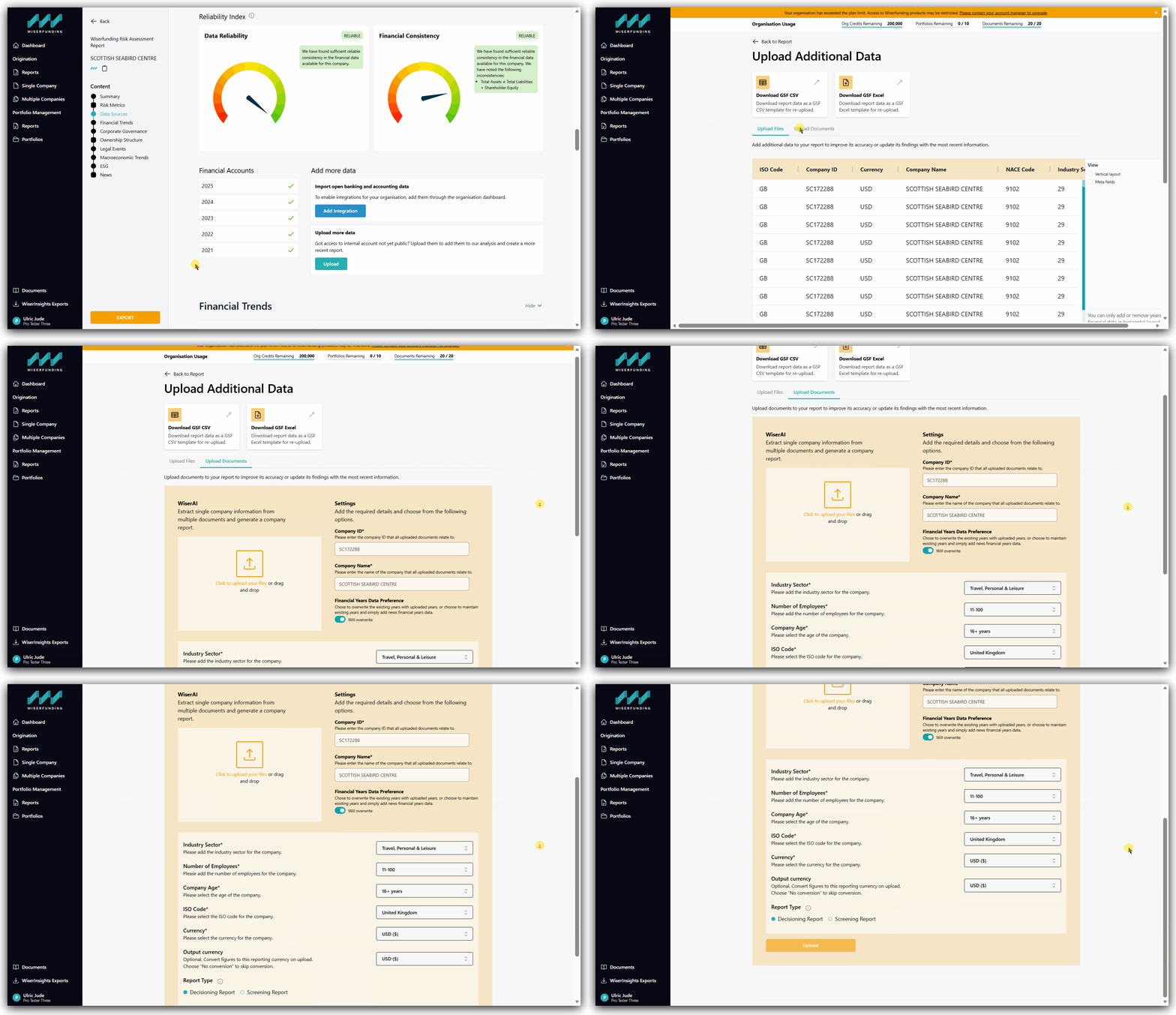](https://knowledge.wiserfunding.com/hubfs/kb-repository/2026-09-25-WiserAI-Document-Upload.gif?hsLang=en)
When using this workflow, the newly generated report will retain the Wiserfunding-sourced information from the original report while also incorporating the financial data extracted from your uploaded documents.
---
Steps when generating a report without Wiserfunding Data.
1. Navigate to the Single Company page.
2. Select the Document Upload tab.
3. Drag and drop your files into the upload area.
4. Choose the **Output currency**.
5. Complete any additional information requested.
6. Click Upload.
[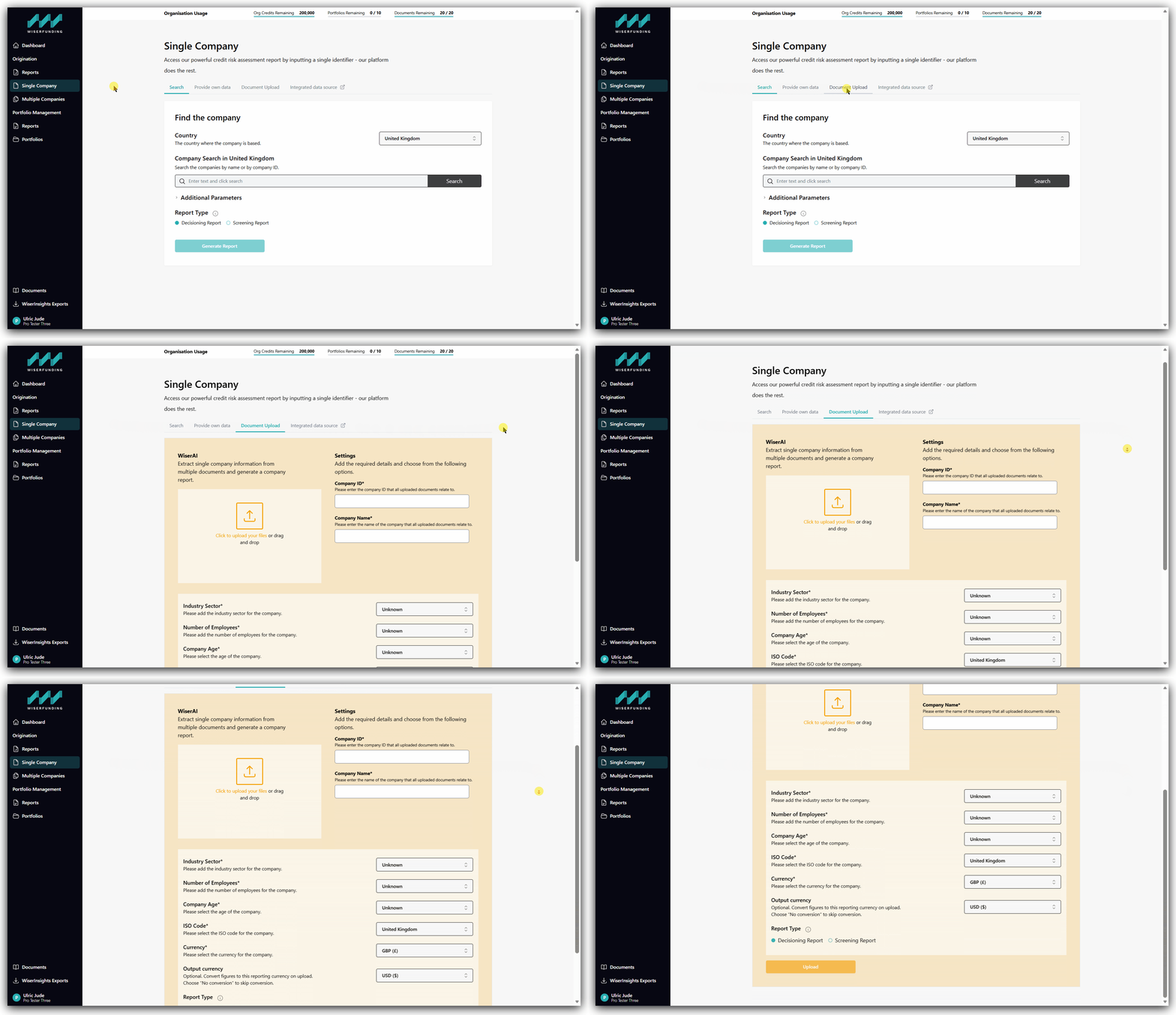](https://knowledge.wiserfunding.com/hubfs/kb-repository/2026-09-25-WiserAI-Document-Upload-Single-Company.gif?hsLang=en)
When using this workflow, the report will be based solely on the information contained in the uploaded documents. Wiserfunding-sourced company data will not be included.
---
If you have any further questions or face any issues, [please contact our support team.](https://knowledge.wiserfunding.com/get-more-help?hsLang=en)
- [Using the Wiserfunding Platform](https://knowledge.wiserfunding.com/using-the-wiserfunding-platform?hsLang=en#main-content)
- [Running New Reports](https://knowledge.wiserfunding.com/using-the-wiserfunding-platform?hsLang=en#running-new-reports)
- [Updating Reports | Adding More Data](https://knowledge.wiserfunding.com/using-the-wiserfunding-platform?hsLang=en#updating-reports-adding-more-data)
- [WiserAI Documents](https://knowledge.wiserfunding.com/using-the-wiserfunding-platform?hsLang=en#wiserai-documents)
- [Portfolio Management](https://knowledge.wiserfunding.com/using-the-wiserfunding-platform?hsLang=en#portfolio-management)
- [Using Wiserfunding APIs](https://knowledge.wiserfunding.com/using-the-wiserfunding-platform?hsLang=en#using-wiserfunding-apis)
- [Integrations](https://knowledge.wiserfunding.com/using-the-wiserfunding-platform?hsLang=en#integrations)
- [General](https://knowledge.wiserfunding.com/using-the-wiserfunding-platform?hsLang=en#general)
- [Understanding the Credit Insights](https://knowledge.wiserfunding.com/understanding-the-credit-insights?hsLang=en)
- [Create Users | Passwords | Contact Support](https://knowledge.wiserfunding.com/create-users-passwords-contact-support?hsLang=en#main-content)
- [Contact Support](https://knowledge.wiserfunding.com/create-users-passwords-contact-support?hsLang=en#contact-support)
- [Admin](https://knowledge.wiserfunding.com/create-users-passwords-contact-support?hsLang=en#admin)
- [Platform Release Notes](https://knowledge.wiserfunding.com/platform-release-notes?hsLang=en#main-content)
- [API Versioning Policy](https://knowledge.wiserfunding.com/platform-release-notes?hsLang=en#api-versioning-policy)
[](http://wiserfunding.com?hsLang=en)
Copyright © 2026, Wiserfunding Ltd